SparkToro's interface uses bright, high-energy brand colors by default. If they feel too intense, you can turn on Muted Colors to switch to a calmer, softer palette. Your reports, numbers, and data don't change at all: only the colors are toned down.
What Muted Colors changes
- Buttons, badges, and accent colors become softer and less saturated
- Report background bands change to a calm, warm neutral gray
- Charts and graphs use muted tones instead of the bright brand colors
The main "Create New Report" button stays its signature green so the primary action is still easy to spot.
How to turn on Muted Colors
- Sign in to SparkToro.
- Click your initials (avatar) in the top-right corner of the navigation bar.
- In the menu that opens, click Muted colors.
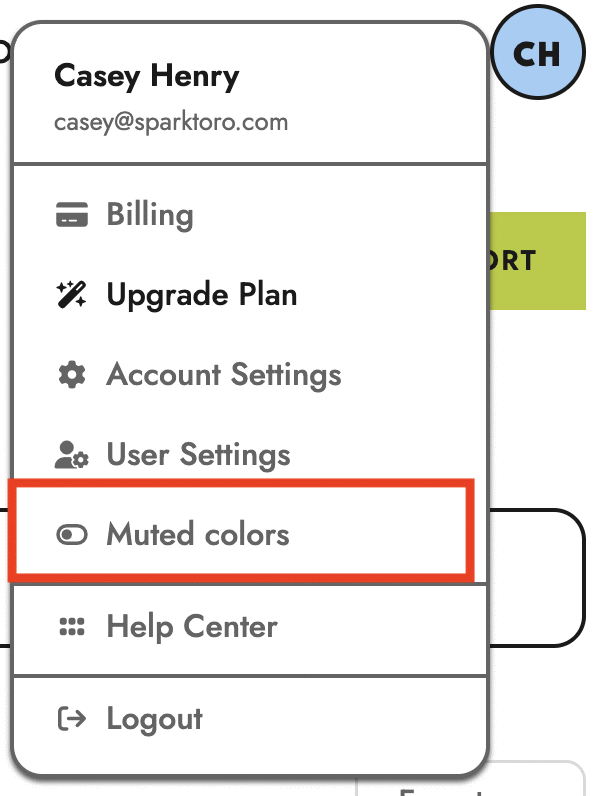
The change applies instantly across the app, including your reports and charts. To go back to the standard colors, open the same menu and click Muted colors again to turn it off.
Good to know
- It's saved to your browser. Muted Colors is remembered on the browser and device where you turn it on. If you sign in from a different browser or computer, you'll want to turn it on there too.
- It's not a full dark mode. Muted Colors keeps the light interface but lowers the color intensity. SparkToro doesn't offer a dark theme yet, so this is the best option if the bright colors are bothering you.
- Downloads match your setting. If you export a report or persona PDF (or PowerPoint) while Muted Colors is on, the download uses the muted palette too.
If the colors still don't feel right, or you'd like to see other display options like a dark mode, let us know at help@sparktoro.com: we read every note.
