The Workspace is where you put your audience research to work. Instead of just reading a report, you pick something you want to do with that audience, choose which report(s) to run it against, and SparkToro generates the result. To get there, click Workspace in the top navigation. The page opens with the question, "What do you want to do with your audience?"
The Workspace has two tabs:
- Take Action — the catalog of everything you can do (generate personas and run Take Actions).
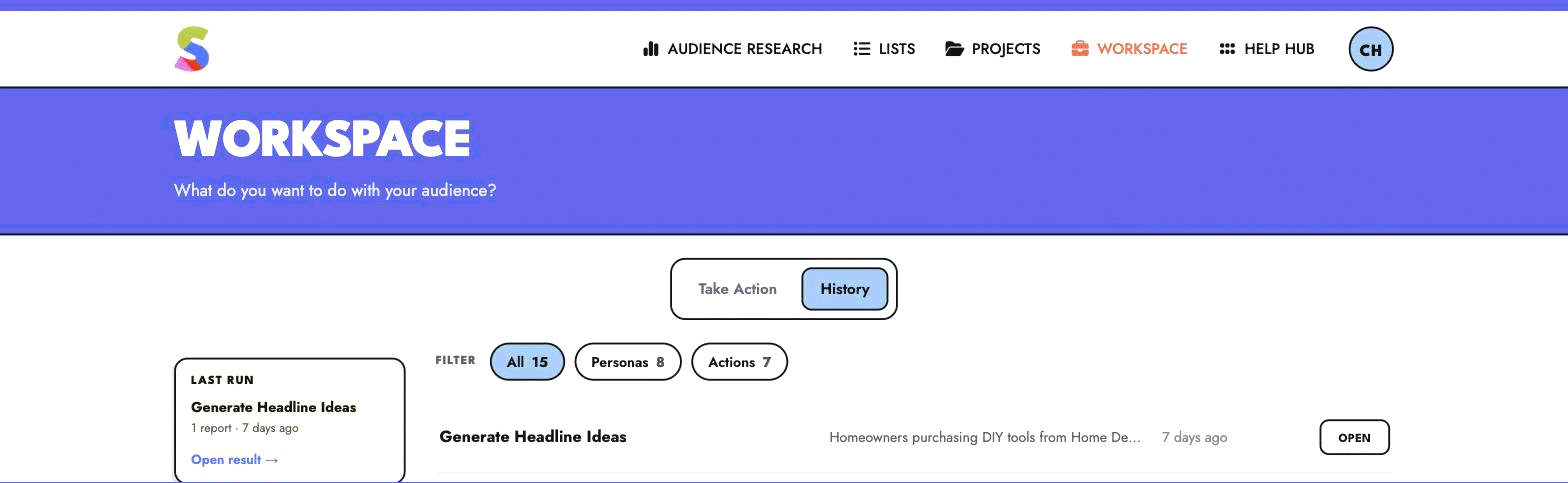
- History — a running feed of everything you've generated, so you can reopen past results.
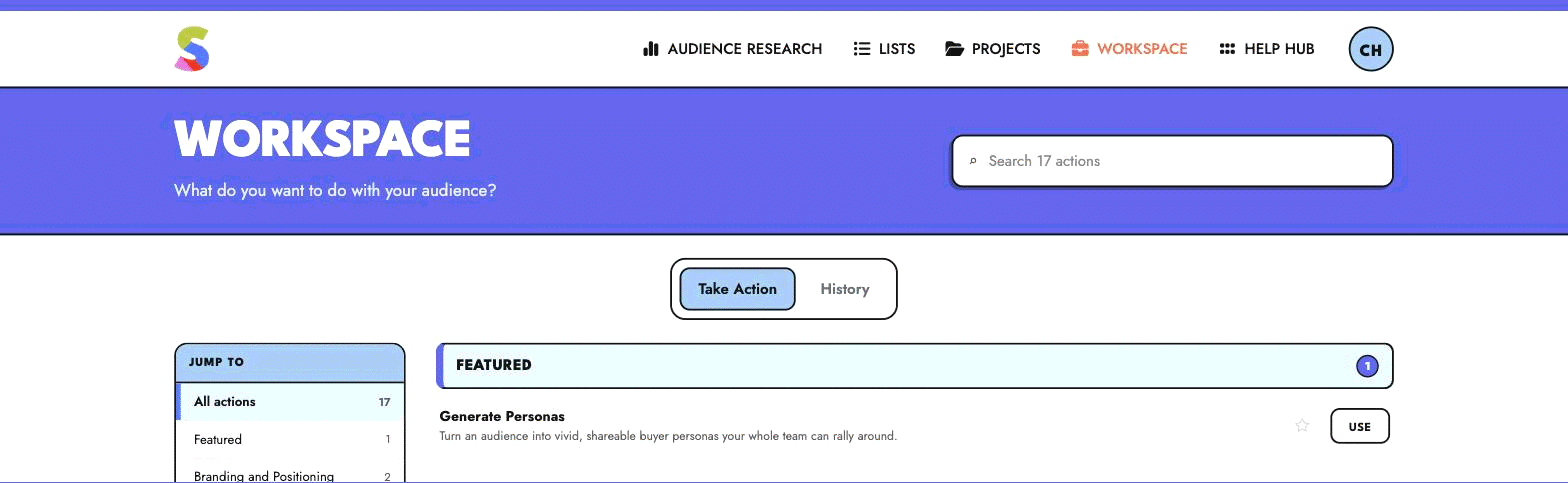
Generate Personas
Generate Personas turns one or more audience reports into vivid, shareable buyer personas your whole team can rally around. From the catalog, click Use on "Generate Personas," pick up to 3 reports to base the personas on, name the set, and start. SparkToro analyzes the selected audiences and builds detailed personas for you.
Each persona is broken into sections such as Pain Points & Goals, Buying Behavior, Search Behavior, Messaging, How to Reach This Persona, Demographics, Content Preferences, and more. Every section is labeled as either SparkToro data (straight from the audience research) or AI-interpreted (inferred from that data), so you always know what's grounded in data versus generated. Personas are editable, and you can download them as a PDF to share.
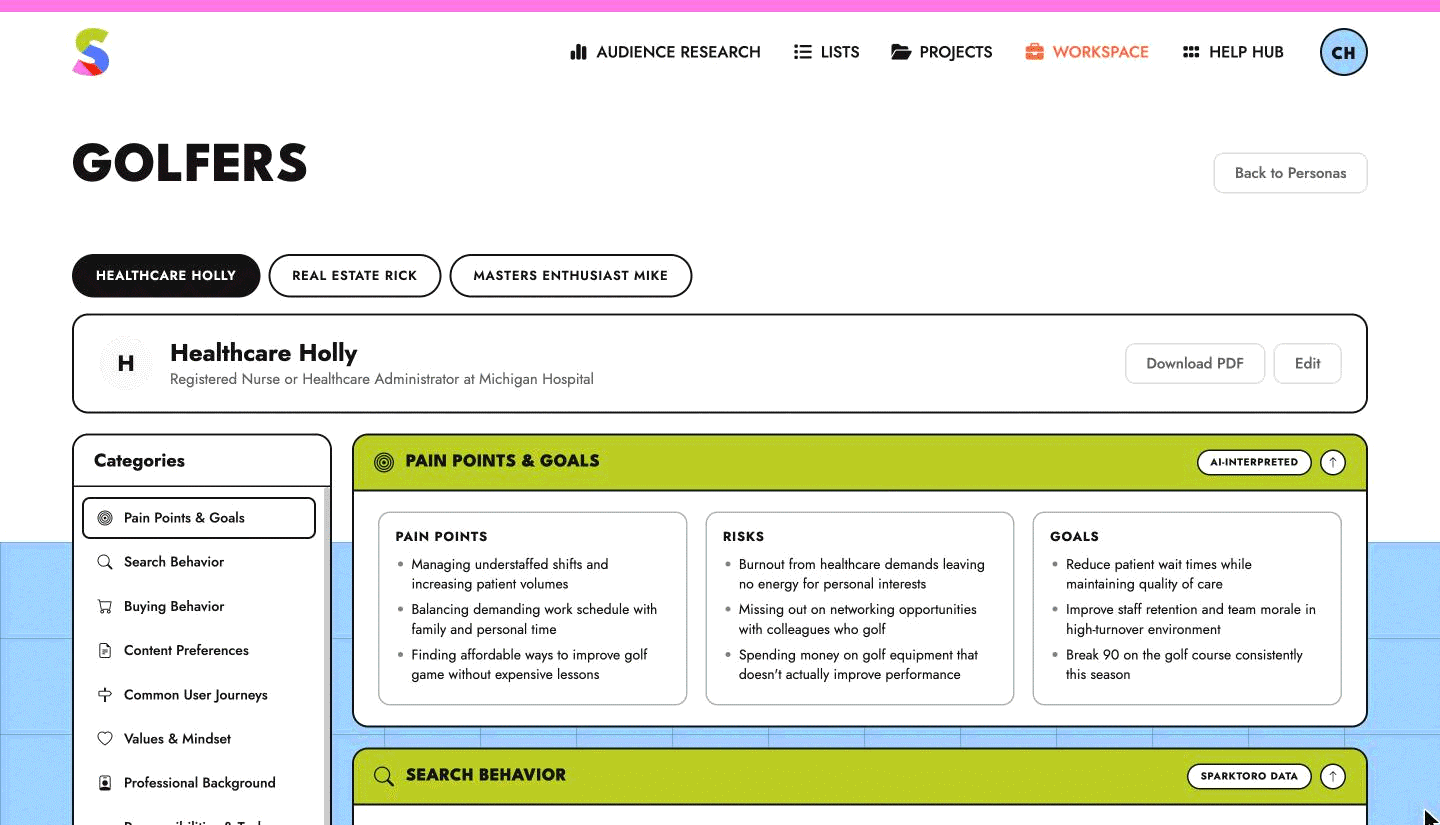
Take Actions
Take Actions are 20+ ready-made templates that turn a report into a concrete next step — without leaving SparkToro. They're grouped into categories:
- Branding and Positioning (e.g. Generate Headline Ideas, Craft Positioning)
- Content Creation (e.g. Brainstorm High-Value Content Ideas, Create a Content Outline)
- Conversion Rate Optimization (e.g. Make Better Landing Pages, Checklist for a High-Converting Landing Page)
- Social Media Marketing (e.g. Identify Important and Highly Followed Accounts, Brainstorm Social Post Ideas)
- Public Relations & Media Outreach (e.g. Identify Media Outlets, Identify High-Impact Media Angles)
- Search Engine & AI Tool Visibility (e.g. Optimize a Page of Content, Find AI-influential Publications)
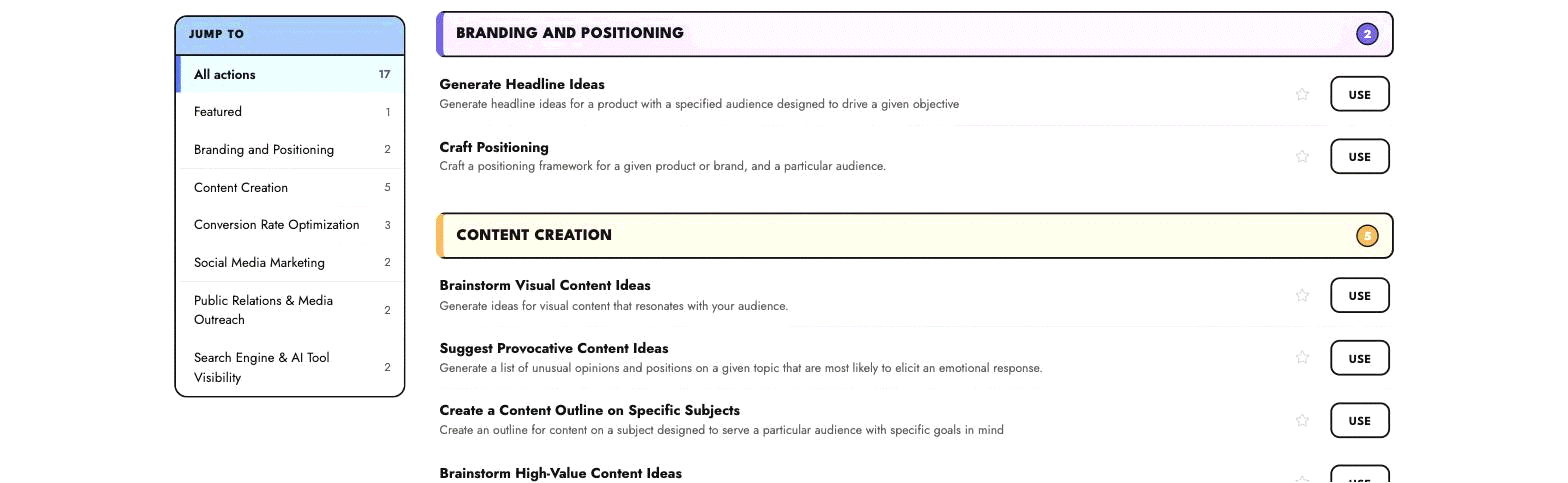
To run one, click Use on the action, choose the report (audience) to run it against, and answer a couple of quick questions (like your website, business type, and goal). SparkToro then generates results tailored to that audience — for example, headline recommendations with the reasoning behind each, landing-page improvements, or a full positioning framework. You can generate new versions, and everything you run is saved to your History.
Tip: Star an action to add it to your Favorites at the top of the catalog, and use the search box in the header to quickly find an action by name.
History
The History tab is a single, newest-first feed of everything you've created in the Workspace — personas and Take Actions alike. Filter by type (All, Personas, Actions), and click Open on any item to jump right back into that result. A Last run card also gives you one-click access to your most recent result.
Who can use what
Both Take Actions and Generate Personas are included with our Business and Agency plans (Generate Personas supports up to 3 reports per set). They aren't included on the Personal plan or on accounts without a subscription. When you try to run one, SparkToro shows an upgrade panel explaining what's needed.
You can see plan details on our pricing page.
